

NENE Video: AI Image and Video Generator
Create with Grok, GPT Image 2, Nano Banana 2, Veo and MiniMax. Start with an image, make a video, or open Ad director to plan a product campaign.
Flexible creation modes · Clear controls · Account credits · Failed tasks refunded
Explore image and video models
- GPT Image 2Image
- Grok Imagine Image 2.0Image
- Nano Banana 2Image
- Grok Imagine Video 1.5 PreviewVideo
- MiniMax H3Video
- Veo 3.1Video
- Kling O3Video
- Gemini Omni 1.1 FlashVideo
- Seedance 2.5Video
- Seedream 5.0 ProImage
Image and Video Creation, One Credit Balance
Create images, short videos, reference-guided clips, and motion-controlled results without leaving the homepage. NENE validates every option before submission, reserves the displayed credits, restores eligible failed tasks, and keeps completed work in private History.
Image to Video AI — Visual Starting Points
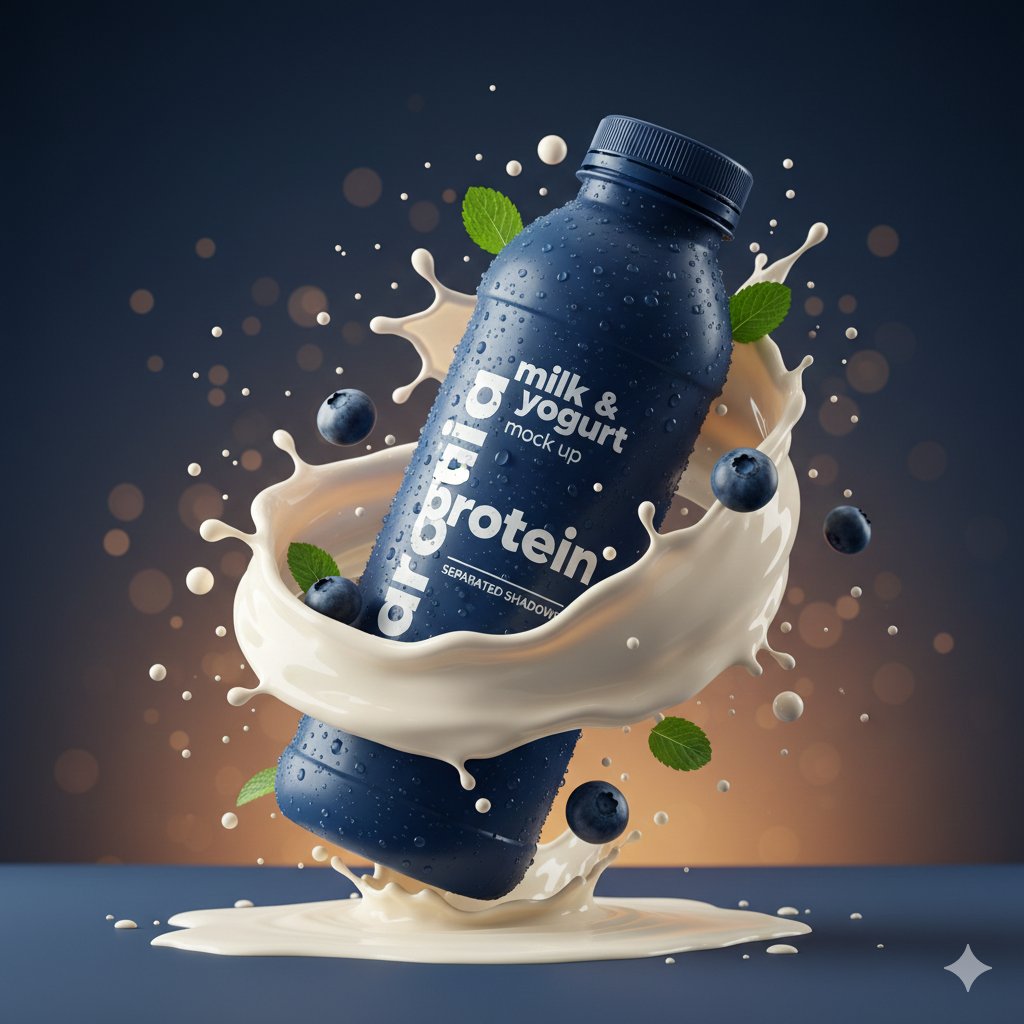
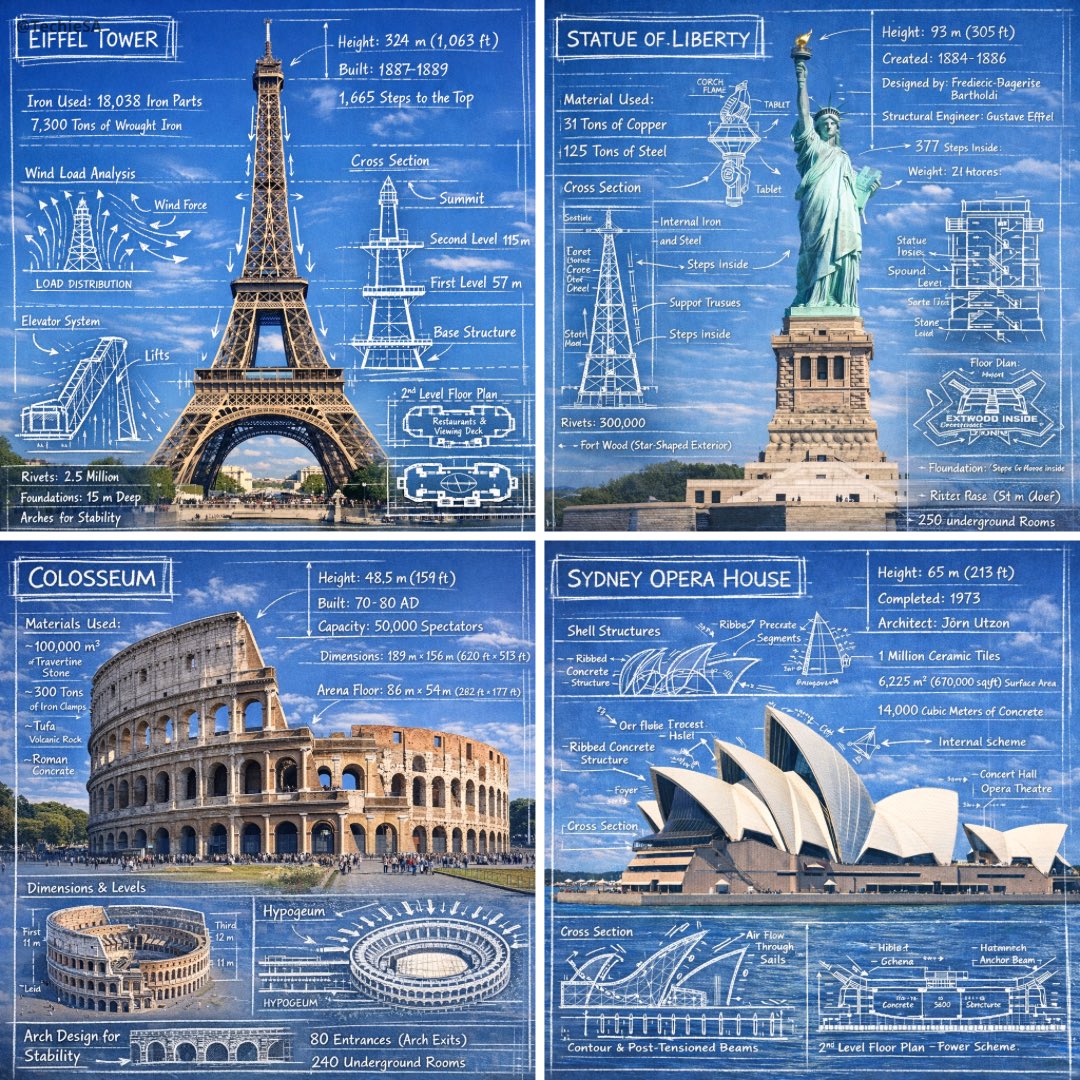
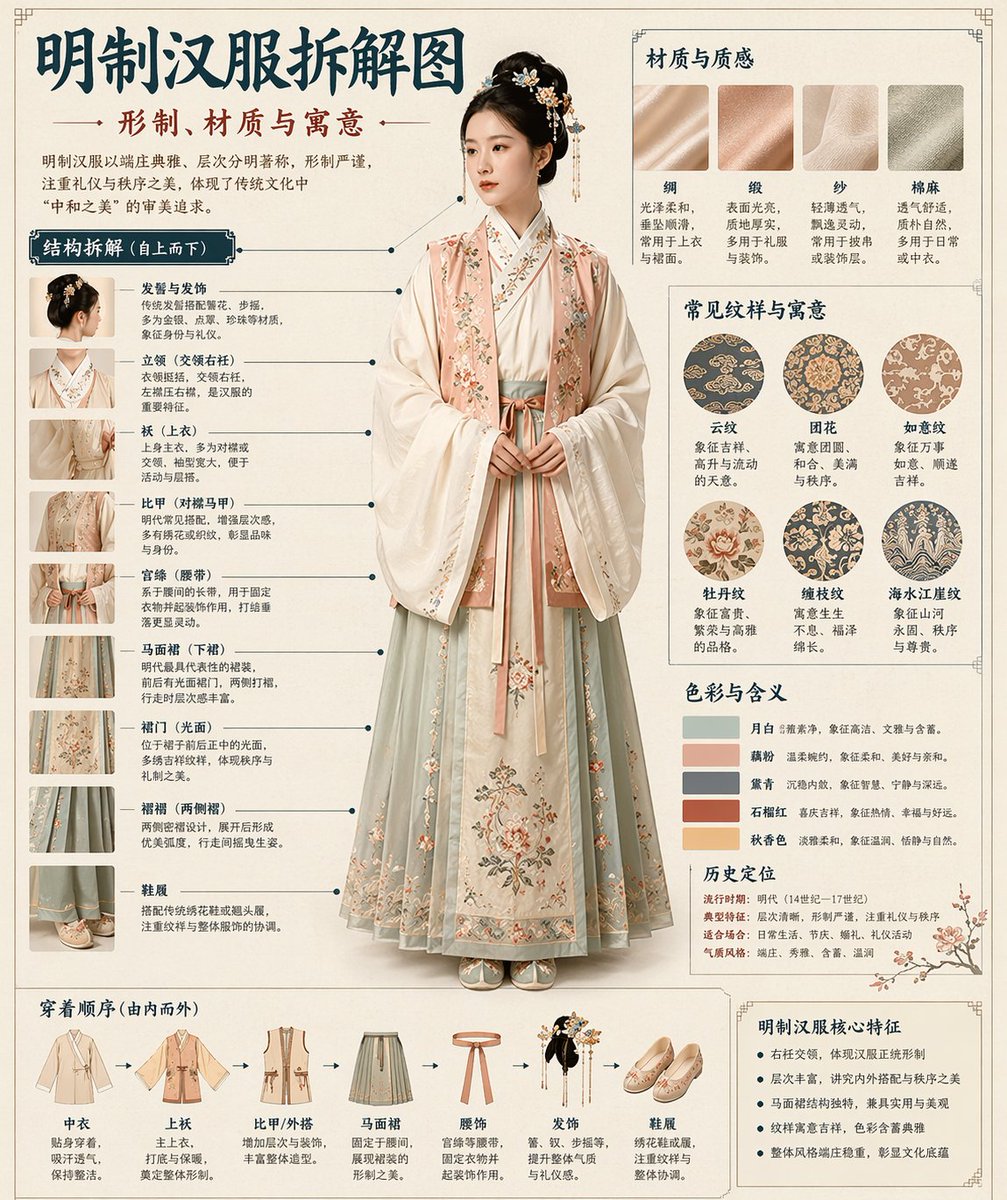
Explore reference images for your next video. Choose a direction, add your own photo, and preview the settings before generating. These are inspiration images, not generated video results.
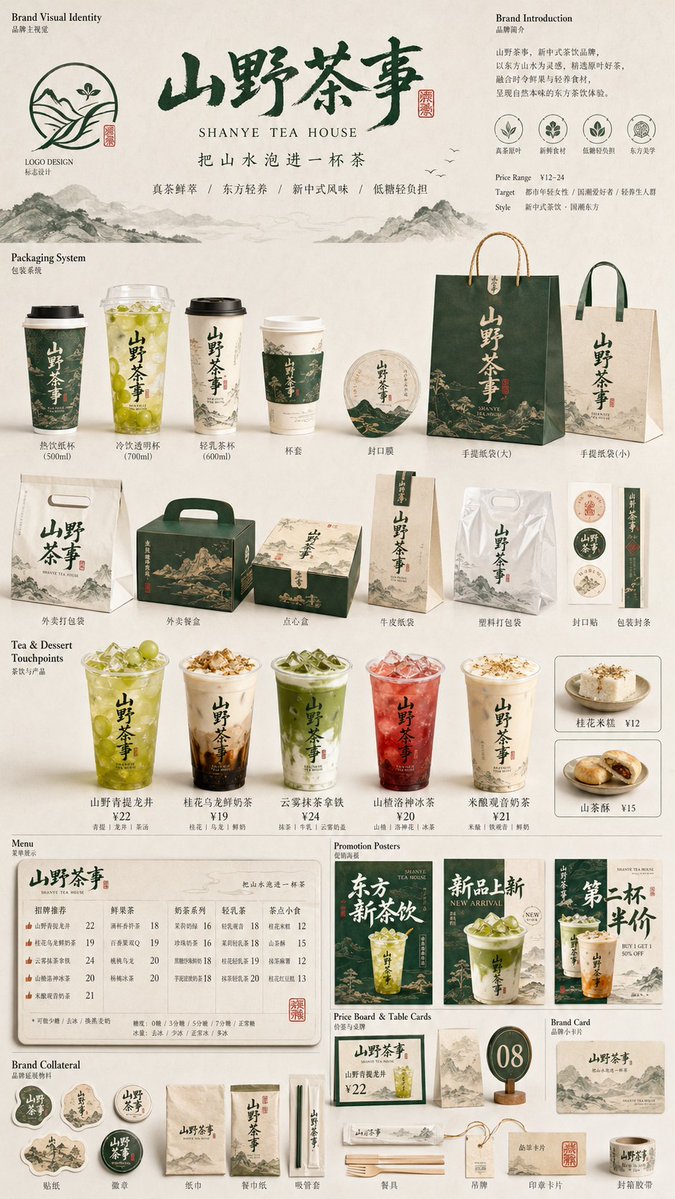
Story Frame
Old Photo Alive
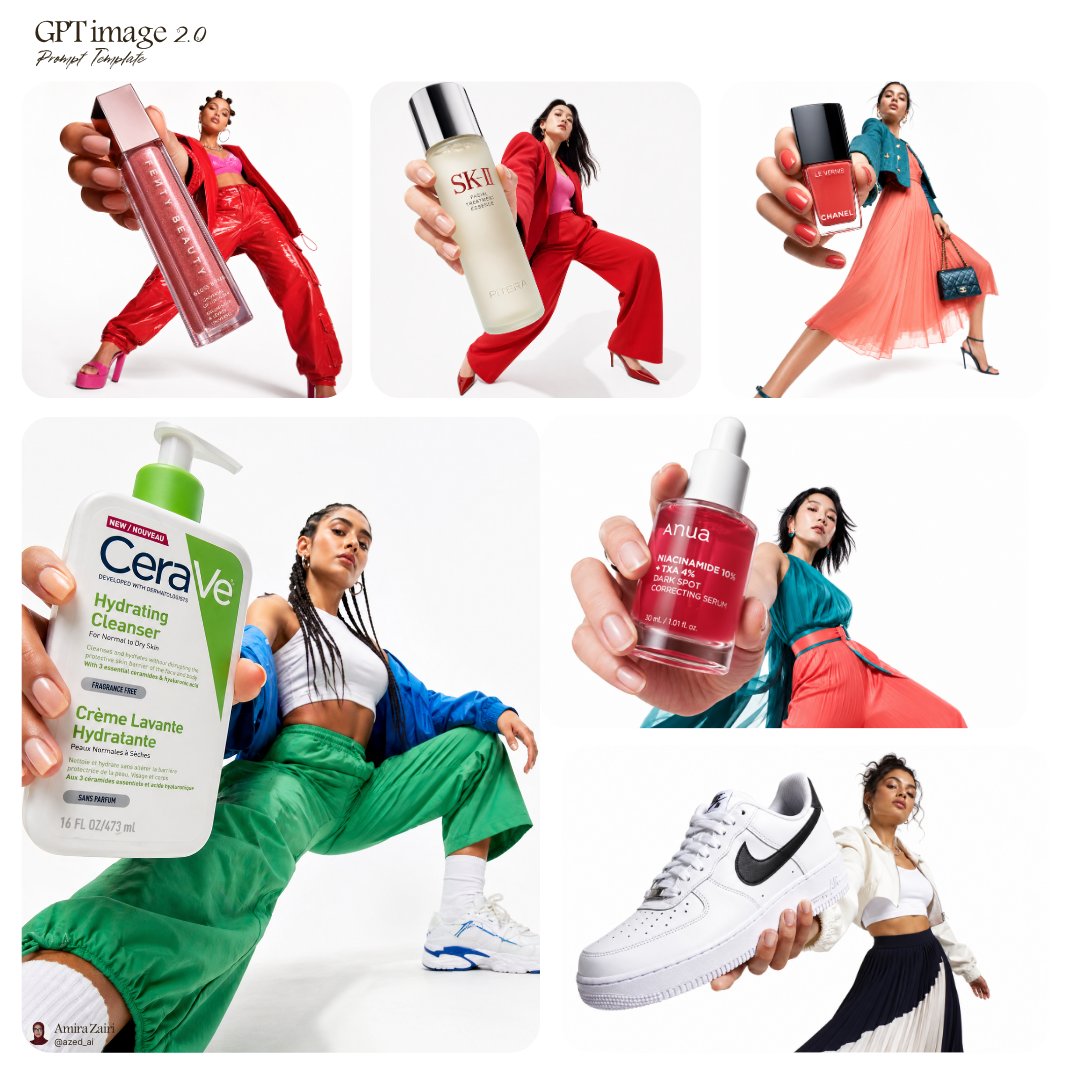
Product Reveal
Social Motion
Camera Move
Reference images are adapted from a public inspiration dataset under CC BY 4.0. View source. CC BY 4.0 license.
Image to Video AI for Family Photos and Keepsakes
Family photos often capture the right people but only one instant. A gentle photo to video AI effect can add a small camera move, a natural blink, drifting light, or a sense of depth while keeping the original picture recognizable. Use a high-quality group portrait, a child drawing, a birthday photo, or a holiday keepsake. Pick restrained movement when identity matters, preview the result carefully, and share only with the permission of the people shown. NENE Video is intended for affectionate, consent-based memories rather than impersonation. If the first motion feels too strong, keep the same photo and choose a quieter effect.
Animate a family photoOld Photo to Video AI — Bring Vintage Photos to Life
An old photo to video AI workflow can make an archive easier to revisit without pretending to rewrite history. Begin with the clearest scan you have, crop out scanner borders, and avoid aggressive face motion when the original is soft or damaged. Slow zooms, parallax, and subtle environmental movement usually preserve a vintage portrait better than dramatic action. Compare the result with the original before downloading. When sharing, explain who is shown, when the picture was taken, and that the motion was created with AI.
Animate an old photoImage to Video AI for Product Photos and Ads
Turn a clean product image into a short visual for a storefront, paid ad, launch post, or social story. Product motion works best when the item is fully visible, the logo is readable, and the background leaves room for a push-in, orbit, light sweep, or reveal. Choose the output ratio before generation: vertical for stories, square for feeds, or landscape for a wider ad. Review labels, packaging text, colors, and product shape frame by frame because generative video can change small details. Commercial publishing still requires rights to the source photography, trademarks, music, and any people shown.
Create a product clipHow to Convert an Image to Video with AI
Create an image or video from the same homepage. Three clear steps keep the workflow, input, and expected result under your control.
1. Choose a Creation Mode and Add References
Switch between image and video, choose the workflow you need, then add the supported image or video references.
2. Set the Prompt and Options
Write the prompt, then choose the ratios, resolutions, durations, audio controls, and advanced options shown for the selected workflow.
3. Download and Share
Wait for the real task status and inspect faces, products, text, and motion. Download the result you want to keep, and disclose AI motion when real people are shown.
Creative Starting Points for Your Prompt
Use these directions as prompt inspiration for portraits, archives, products, social clips, camera movement, or visual stories.
Flexible Image and Video Creation
Choose a fast image workflow, a higher-detail image workflow, a flexible video workflow, reference-guided creation, or motion control. NENE validates inputs, shows real task states, and saves completed outputs to private NENE storage.
Why Creators Choose NENE Video
A simple generator still needs clear boundaries. NENE Video favors understandable controls, honest task states, and respectful use of people and source media.
- One homepage switch keeps image and video generation in the same workflow.
- Each creation mode shows its supported files, ratio, resolution, duration, sound, seed, and advanced options before submission.
- Private uploads and account history are not published as searchable showcase pages.
- Failure, delay, and success are kept separate instead of showing a fake completed result.
- AI kissing, deceptive deepfakes, non-consensual face edits, and NSFW content are not supported.
Create AI images and videos from one NENE generator. Choose the right creation mode, use one credit balance, and keep your work in private history.